Resume credits are your production history. You can add them one by one or import a list, then link a credit to a portfolio project when you have photos.
-
Open Resume from the Creator Dashboard left menu.
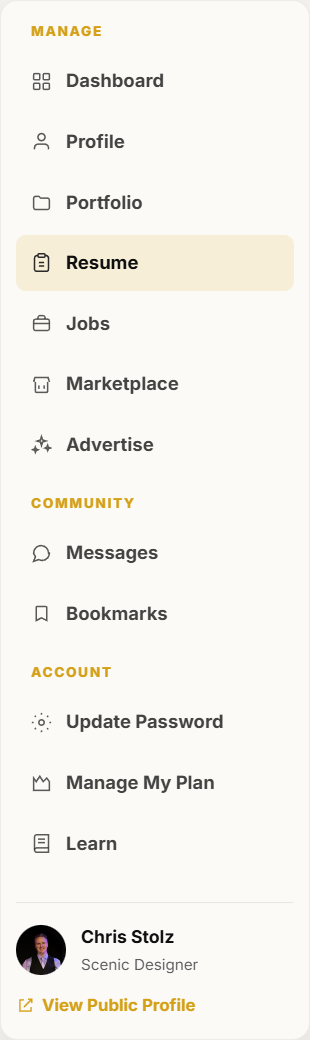
Resume is in the dashboard left menu. -
Click Add credit to enter one production, role, organization, and year.
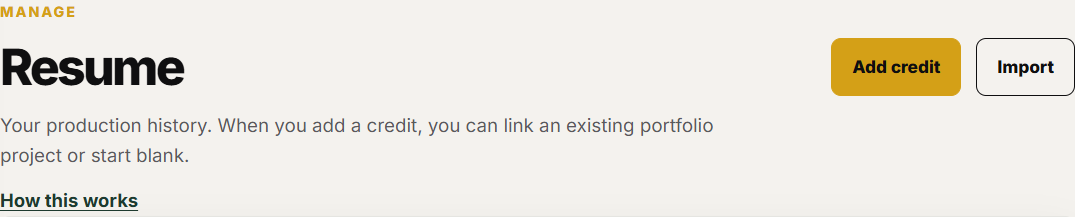
Add credit is the primary button on the Resume page. -
Optionally link the credit to an existing portfolio project so directors can see proof next to the line.
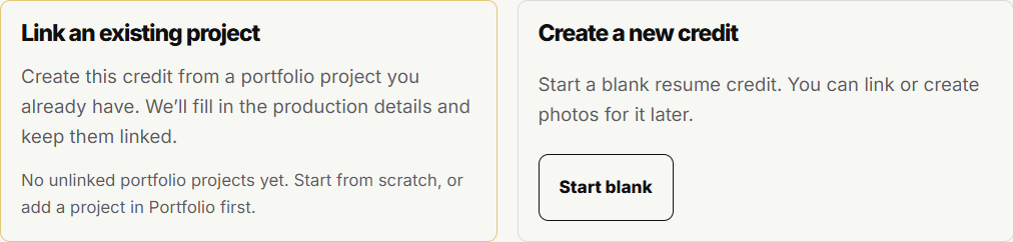
The credit editor can link a portfolio project. -
To import many credits at once, click Import and download the CSV template.
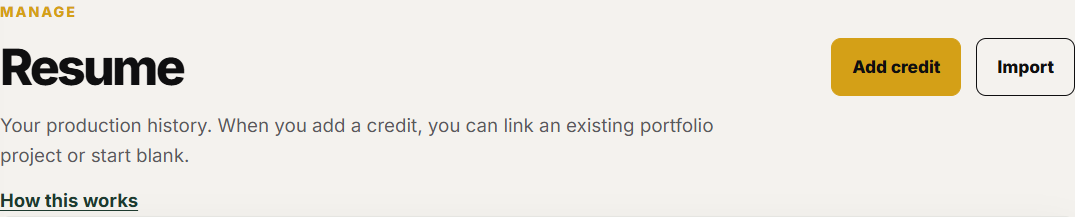
Import is the secondary button next to Add credit. -
Fill the spreadsheet (up to 100 rows), upload it, then open each imported credit to add skills or a linked project.
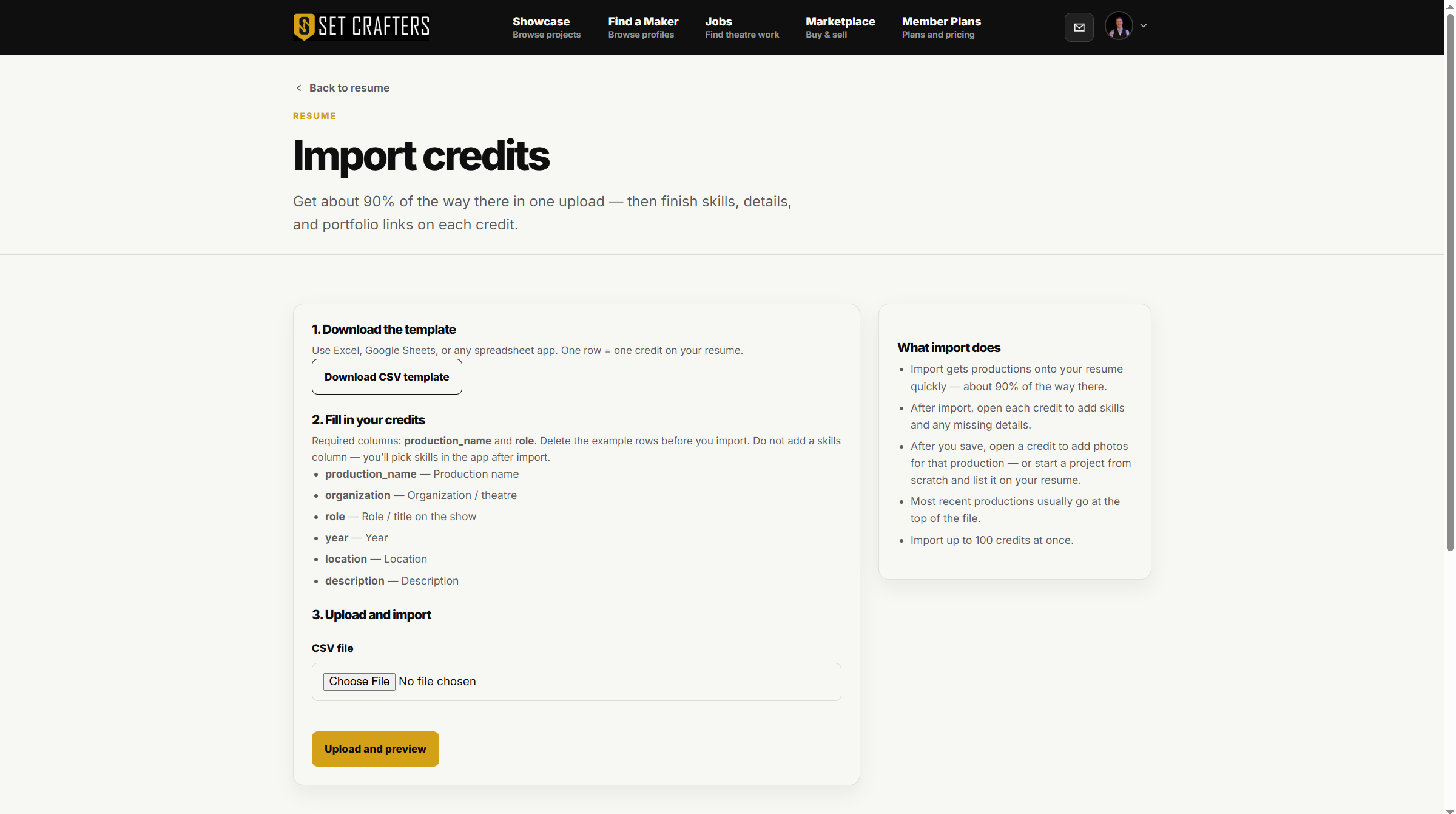
The import page accepts a CSV of production credits. -
Use the arrows on the Resume list to put credits in the order you want them to appear.